
Codiatech Blog
Windows Maintenance Windows: A Critical-Device Update Plan
Assess the improved Intune maintenance-window experience with device eligibility, action timing, exception tests and business acceptance after restarts.

What Is New in the November 23 Announcement?
Microsoft’s November 23, 2026 post announces an improved Intune configuration experience for Windows maintenance windows. Native policies existed earlier; this is not their first introduction. The post requires Windows 11 24H2 or later with the February 2026 or later security update. App-update support is described as future work. Official Microsoft announcement
For a business, the value lies in coordinating device availability and maintenance rather than postponing updates indefinitely. A visitor kiosk, warehouse terminal and employee laptop may need different schedules. The following pilot is a suggested assessment approach, not a customer deployment or an uptime guarantee. Unlike an inventory or Intune Sync check, it concerns the observed timing of update actions and the device’s readiness afterward.
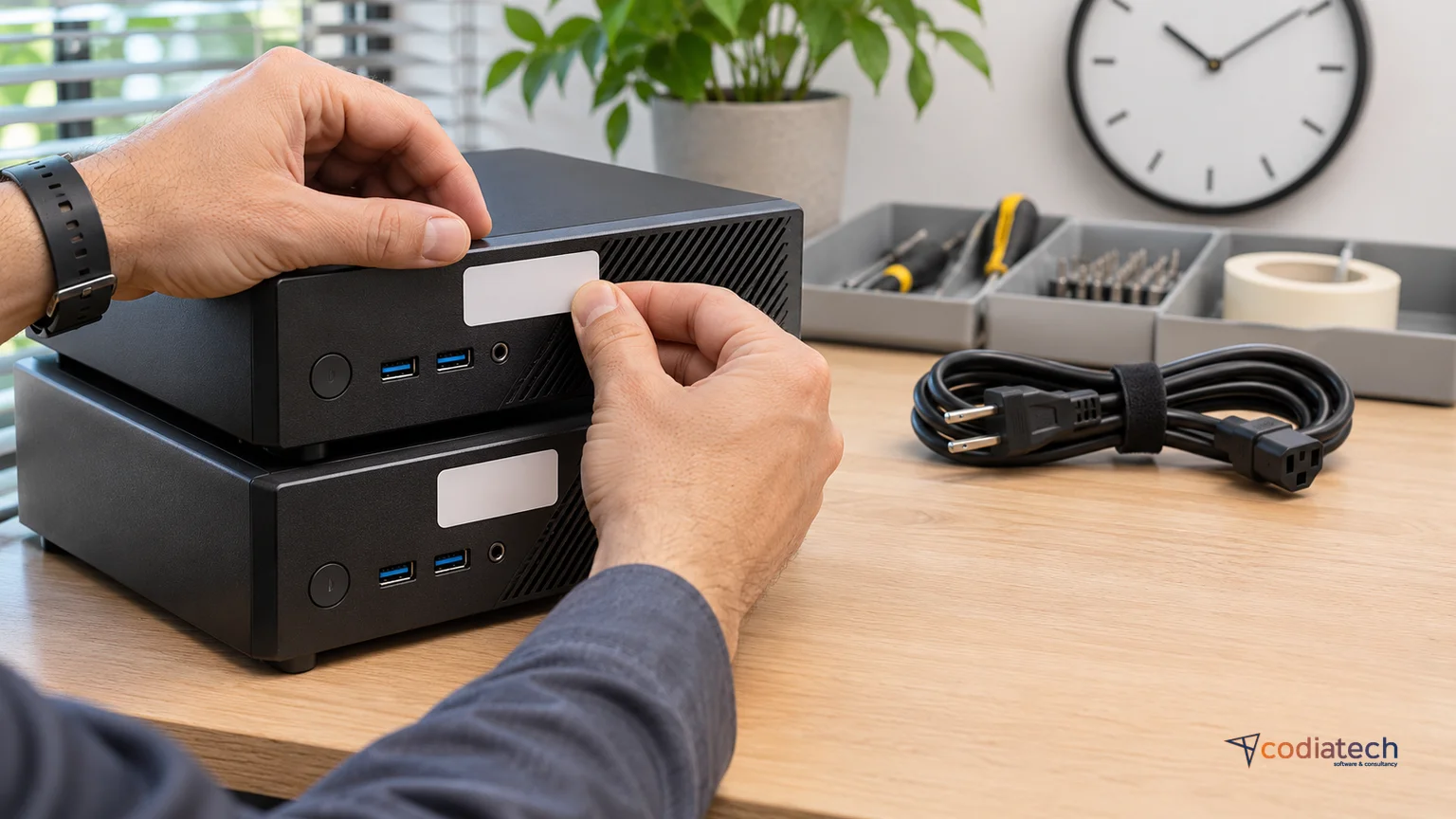
Start with the Device’s Operational Role
A list of device names is not enough. Record what each endpoint does, when it is needed, who owns its operation and what stops working if it becomes unavailable. A representative visitor kiosk may still admit guests outside normal office hours. In that case, “after work” does not identify a safe period. Match the schedule to the business activity rather than assuming the IT team’s quiet hours are quiet for every department.
We recommend a small, comparable group with manageable recovery arrangements. Critical production or medical equipment needs its manufacturer’s requirements and the relevant operational approval considered separately. This article does not establish that every specialized device can safely use one policy. Keep individually used endpoints distinct where notification and postponement expectations differ. A successful result on one convenient test device should not silently become the rule for the entire organization.
Separate Eligibility, Assignment and Actual Behavior
The Intune configuration guide gives Windows 11 24H2 with KB5077181, build 26100.7840, or later as the underlying settings threshold. Assignment to a group does not prove that every member is eligible or that the configuration took effect. Check the OS, policy delivery and resulting update behavior separately.
Build the acceptance record around those three stages. Keep an older device visible and explain why it is outside scope rather than silently removing it from the results. Where versions differ inside a group, assess how targeting should reflect eligibility. A conflict, offline endpoint or delayed management connection is not a successful application. Conversely, putting all such cases under one generic failure label conceals the next useful action. The person reviewing the pilot should understand what was tested and what remained unverified.
State Which Actions the Window Controls
A maintenance schedule can be mistaken for one restriction covering every download, installation and restart. Define the selected scope explicitly. Is the requirement to constrain restarts, installations and restarts, or downloads as well? Download-related network demand and restarting a device affect the business differently. A calendar alone cannot express the intended outcome until those actions have been chosen and recorded.
For a representative warehouse terminal, avoiding a restart during a shift might be the priority, while downloading content earlier is a separate decision. Observe the start and finish of each action in the pilot record. Do not treat the maintenance window as the mechanism deciding which update is approved or offered. Bring the organization’s other update rules, deferrals and deadlines into the same assessment. A successful configuration screen does not describe the whole servicing process or establish that a usable update was available during the scheduled period.
Do Not Confuse the Window’s End with Completion
The guide uses device-local time and allows work started inside a window to continue after it ends. User-initiated actions and higher-priority policy events can also produce exceptions. Avoid promising that no update activity can occur outside the schedule. Behavior and policy interactions
In the operational plan, distinguish the latest acceptable start from the time when the device must serve users again. Full startup, application launch and required peripherals can belong in acceptance as well. If endpoints use different time zones, the same schedule label will not mean the same instant. Include a late-starting action and work extending past the end in the pilot where practical. Explain the result with recorded events rather than a prediction that every update must fit neatly into the selected hours.
Exercise Missed Windows and Exception Cases
A useful pilot includes more than devices left powered on at the right time. Observe controlled cases where an endpoint is off during the window, reconnects later or has an expired one-time schedule. Do not assume automatic catch-up, immediate work at the next boot or indefinite waiting without checking. Assess the observed behavior against the rest of the organization’s configured policies and business requirements.
Microsoft’s guide describes priority situations including expedited updates and expired deadlines or grace periods. Put these in a written exception list. Before declaring an out-of-window event a feature failure, check whether the action was within the selected scope and whether another policy took precedence. Assign ownership for endpoints that miss maintenance. Otherwise a carefully written calendar can conceal an accumulation of unprocessed updates. Record an unresolved case with the evidence needed for a follow-up instead of reporting it as either compliant or faulty without justification.
Accept the Business Workflow After the Restart
An installed-update status is not final evidence that the endpoint performs its job. Does the representative kiosk launch its application, reconnect to the network and complete the expected scanner or printer operation? Acceptance should return to the actual workflow. Linking the update report and operational test in one record helps show which stage failed if an issue appears.
Preserve the earlier state, change time and test outcome without copying unnecessary personal information or complete screen contents into logs. Decide who can stop expansion, which symptoms trigger that decision and how support is reached. Do not assume every update can be removed or every device offers the same recovery route. The objective is evidence of successful service afterward, not merely evidence that a scheduled action began. Keep unexplained observations open until their operational significance is understood.
Expand Only When the Pilot Is Operationally Clear
At closure, review the eligible-device list, chosen actions, local-time schedule, missed-window results, exceptions and post-restart checks together. Both IT and the business owner should accept the result. Give an incomplete endpoint its own explanation and next action rather than hiding it in an average. One group may work well while another has different application or manufacturer constraints; expansion should respect those differences.
Within Codiatech’s IT systems and integration and maintenance and customer support work, the appropriate device-management scope, schedule and acceptance plan depend on the project. This assessment claims neither Microsoft partnership nor a fixed maintenance duration or reduction in downtime. It reflects sources checked on November 24, 2026. Keep planning an update’s start distinct from demonstrating that maintenance finished with the required business service available.
Primary source: techcommunity.microsoft.com